Never Miss Google Business Profile Reviews for 5, 10, or 50 Locations
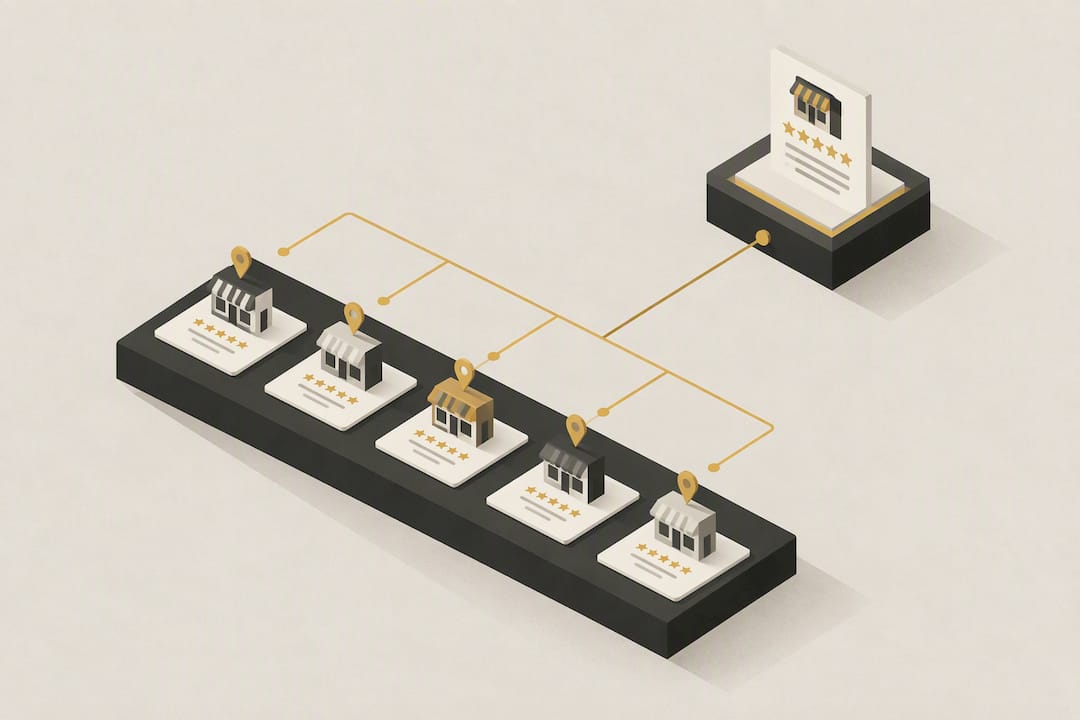
If you own or manage a verified Google Business Profile, you can already read, reply to, and report reviews from your Google Account. Do it in this order: check for any unreplied reviews first, reply to anything negative as soon as possible, then only report reviews that break Google’s rules rather than ones you simply disagree with. Requesting genuine feedback and replying consistently matters far more than chasing a perfect star rating.
TL;DR:
- Reporting reviews should be reserved for content that clearly violates Google’s policies, such as fake, abusive, or spam reviews, not for genuine opinions.
- Managing reviews across multiple locations is streamlined using the Business Profile API, which allows bulk retrieval, reply management, and audit tracking for larger operations.
- Responding to reviews promptly within a day or two, with factual and concise replies using pre-made templates, helps maintain reputation and search visibility.
- Encouraging reviews through easy-to-use links or QR codes in emails, receipts, or on-site signage must avoid incentivizing or scripting for high ratings to stay within Google’s rules.
- Small business owners can effectively oversee reviews with weekly manual checks, but larger operations benefit from automation and professional management services.
Table of Contents
- How to read and reply to google business profile reviews
- How do you ask for google reviews without breaking the rules?
- When should you report a review instead of replying?
- Should multi-location businesses use the Business Profile API?
- Reply templates that keep you out of trouble
- Why review management deserves a proper process
- How Blindspot handles review management for you
- Sources
- FAQ
How to read and reply to google business profile reviews
Every reply starts in the same place: your Google Account. Sign in to the one that manages your verified profile, because Google ties reply permissions directly to profile verification, and access varies slightly by country and business category.
Here’s the actual path:
- Sign in to the Google Account linked to your verified Business Profile.
- Search your business name in Google Search or open it in Google Maps.
- Select “Reviews” (sometimes labelled “Read reviews”).
- Choose the review you want to respond to and select “Reply.”
- Write your response and submit it.
Replies typically go live within a few minutes, though Google notes it can occasionally take longer while moderation checks run. Keep your public reply factual and brief. Thank the customer, acknowledge the specific point they raised, and if it’s a complaint, move the detail offline: “Please email us at [address] so we can sort this properly.” Never post a customer’s booking reference, phone number, or other private details in a public reply.
Before you consider reporting anything, capture the evidence. Screenshot the review, note the reviewer’s name, the date it appeared, and copy the full text. If you contest it later, having this on file speeds up the appeal.

Pro Tip: A negative review isn’t automatically reportable. If the complaint is genuine, even if you disagree with it, your best move is a calm public reply, not a report. Save reporting for reviews that actually break Google’s content rules.
How do you ask for google reviews without breaking the rules?
The easiest way to get more reviews is to make leaving one effortless. Google lets you generate a review link or QR code directly from your Business Profile manager, which customers can tap or scan to jump straight to the star rating screen. QR codes currently need to be created from a desktop browser, so set this up once and reuse the file everywhere.
Good places to put that link or code:
- Thank-you emails sent right after a job or purchase
- Printed receipts or invoices
- A WhatsApp message after service completion
- A small printed sign at the till or reception desk
- A follow-up post on your business’s social channels
Stick firmly to what’s allowed. Google prohibits incentivising reviews or manipulating ratings in any way, so no discounts for five stars, no scripted requests asking specifically for “five stars,” and no pressuring customers who seem hesitant.
A simple, honest script works best: “Thanks for choosing us today. If you have a minute, we’d really appreciate an honest review; here’s the link.” That’s it. Genuine feedback, including the odd critical one, tends to read as more credible than a suspiciously flawless score.
When should you report a review instead of replying?
Reporting and replying solve different problems, and mixing them up wastes time. Reporting removes content that breaks Google’s policies; it isn’t a tool for disputing an opinion you don’t like.
To flag a review:
- Open the review in Search, Maps, or your Business Profile manager.
- Select the three-dot menu or flag icon next to the review.
- Choose “Report review” and pick the relevant policy category.
- Submit and wait for Google’s assessment.
Content genuinely eligible for removal includes fake engagement, impersonation of your business, explicit abuse, spam, or reviews entirely off-topic (say, a review about a completely different company). A one-star review complaining about slow service, however unfair it feels, almost never qualifies.
Reports for the Reviews Management Tool can take up to five working days to resolve, and UK and EEA businesses get specific appeal guidance under that same process.
If your report gets rejected, you get one appeal per review. Use it only when you have solid evidence, the screenshots and details you saved earlier, because a second rejection generally closes the door.
Should multi-location businesses use the Business Profile API?
A single-site business can manage reviews fine through the dashboard, checking weekly and relying on email alerts. Once you’re running five, ten, or fifty locations, manual checking becomes unreliable fast; a review at branch fourteen can sit unanswered for weeks before anyone notices.
This is where the Business Profile API earns its place. Its review resource supports:
- Listing all reviews across every connected location in one call
- Retrieving a single review’s full detail, including reviewer name, star rating, comment, and timestamps
- Updating or deleting a reply programmatically
- Building audit trails that show exactly when each reply went out
The API also supports paginated, batch retrieval, which matters if you’re pulling hundreds of reviews for reporting rather than relying on notification emails that can get missed or filtered. If you’re managing one or two locations, though, this is overkill; a scheduled weekly login does the same job with none of the setup.
Reply templates that keep you out of trouble
Having three templates ready saves time and keeps tone consistent across whoever handles replies.
For a positive review: “Thanks so much for taking the time to write this, [name]. We’re glad the [specific detail] worked well for you, and we’ll pass this on to the team.”
For a neutral or unclear review: “Thanks for the feedback, [name]. We’d love to understand more about [issue] so we can improve. Feel free to email us at [address].”
For a genuine complaint: “We’re sorry to hear this, [name]. This isn’t the standard we aim for. Please contact us directly at [address] so we can look into it properly.”
A few operational rules make every reply better: respond within a day or two, stick to facts rather than opinions, never post private information like order numbers or addresses, and avoid admitting fault publicly even when you’re planning a refund privately. Save the specifics for a direct conversation.
- Never copy a customer’s phone number or address into a public reply
- Only quote a positive review in marketing materials with the reviewer’s explicit permission
- Keep a simple log of every reply sent, in case you need it for an appeal later
Pro Tip: Screenshotting a glowing five-star review for your website or social feed feels harmless, but it’s still someone’s words. A quick “Mind if we share this?” message avoids any awkwardness later.
Why review management deserves a proper process
Reviews aren’t just reputation management, they’re a visibility signal. Profiles that reply consistently and gather steady, honest feedback tend to hold stronger positions in local search than profiles that ignore both. At Blindspot, review outreach sits alongside our SEO and GEO work for exactly that reason: the two feed each other. Small operations should check weekly; busy multi-location profiles need daily eyes on them.
— Harry
How Blindspot handles review management for you
Running reviews properly takes time most owners don’t have between jobs. Blindspot is the alternative to hiring another admin or letting your profile drift unmanaged: we run the audits, build the outreach process, and reply in your voice, so nothing sits unanswered for a week while you’re on site.
Our work covers full Business Profile audits, structured review request campaigns using the same link and QR code tools covered above, agreed reply templates for your team, and API integration for businesses running multiple locations. It suits local trades, security firms, clinics, and any service business where a slow reply or a missed report genuinely costs enquiries. This sits within our broader SEO and GEO service, alongside Essential, Grow, and Transform plans built around ongoing visibility rather than one-off fixes.
If your Business Profile reviews haven’t been touched in months, get in touch with Blindspot and we’ll run through what’s slipping through the cracks.
FAQ
How Do I Find My Google Business Reviews?
Sign in to the Google Account managing your verified profile, search your business name in Google Search or Maps, then select “Reviews” to see everything customers have posted. You need to be signed in as the profile manager to reply, not just to view them.
Is It Worth Having a Google Business Profile if You’re Worried About Bad Reviews?
Yes. A profile with a realistic mix of feedback, including the occasional critical review, generally reads as more trustworthy than one with suspiciously perfect scores, and Google itself notes that steady, honest requests work better than chasing a flawless average.
Can I Have a Google Business Profile Without Any Reviews?
Yes, a profile can exist and appear in Search and Maps with zero reviews, though customers usually trust profiles with some genuine feedback more. Setting up a review link or QR code early gets you past this stage faster.
How Does Someone Leave a Review on My Business Page?
A customer opens your Business Profile in Search or Maps, selects the review option, chooses a star rating, and can add written feedback. They need a Google Account to do this, but it doesn’t have to be a Gmail address.